
Back to: End Hirer Users Management Module Training (EHUMMT26)
In this guide, we will show you how to view an End Hirer’s Deployment Number(s).
What happened before this task? On your ENGAGE Supply Chain Deployment, a requirement to view an End Hirer’s Deployment Number(s) has emerged.
What you are required to do? You are required to view an End Hirer’s Deployment Number(s).
How to perform this task? To view an End Hirer’s Deployment Number(s), please follow the steps below:
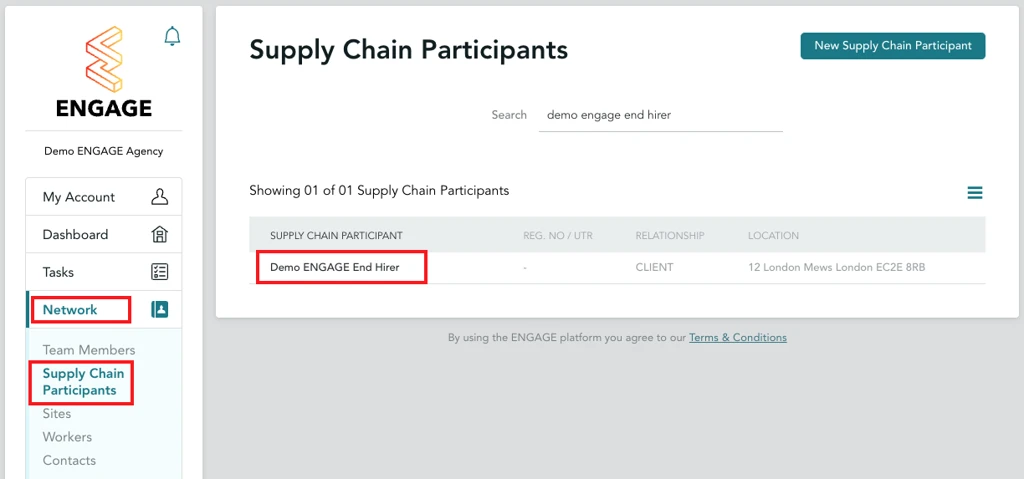
Step 1. Navigate to the Network menu.
Step 2. Click on the Supply Chain Participants tab.
Step 3. Search for the End Hirer whose Deployment Number(s) you want to view, then click on it to open its Supply Chain Participant Details page.
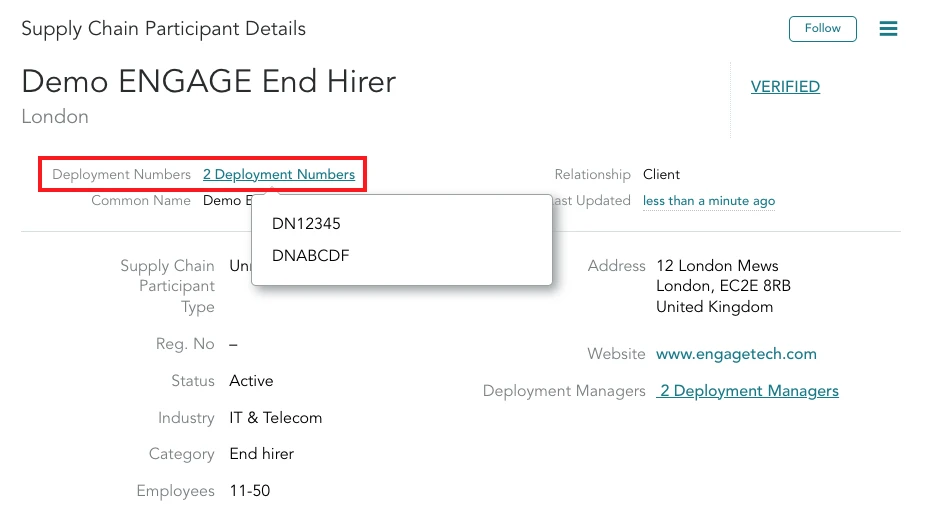
Step 4. View and take note of your End Hirer’s Deployment Number(s).
- If your End Hirer has only one Deployment Number, you will be able to view it at the top of their Supply Chain Participant Details page.

- If your End Hirer has multiple Deployment Numbers, you will need to click on the Deployment Numbers hyperlink to display all their Deployment Numbers.
Key points for successfully completing this task
When you view an End Hirer’s Deployment Number(s), you must keep the following key points in mind:
- As part of our continued improvement of the ENGAGE platform, your client’s Deployment Numbers are now visible directly under their Supply Chain Participant Details page.
- You can now access them at any time whenever you need to use them for a Deployment Management task or when contacting ENGAGE Deployment Support.
- Deployment Numbers are being rolled out gradually across the platform. If they are not visible yet, they will be available soon.
What happens after this task has been completed? Once you have completed the task of viewing an End Hirer’s Deployment Number(s), what will happen next is that you will be able to use them for a Deployment Management task or when contacting ENGAGE Deployment Support.